Running vLLM on Google Colab
Deploying vLLM on Google Colab with Free GPU Inference
I was recently using a coding agent(Opencode) to develop a plugin, and I suddenly got curious if there is a way for people without the necessary GPU to run their own model locally or in the cloud, and then use with Opencode. The first thing I thought of was running a model locally using Ollama, but this won’t fly well on CPU.
First, I deployed a Qwen2.5-Coder-3B-Instruct on Hugging face. It had to be something light weight but can handle coding tasks with the free plan.
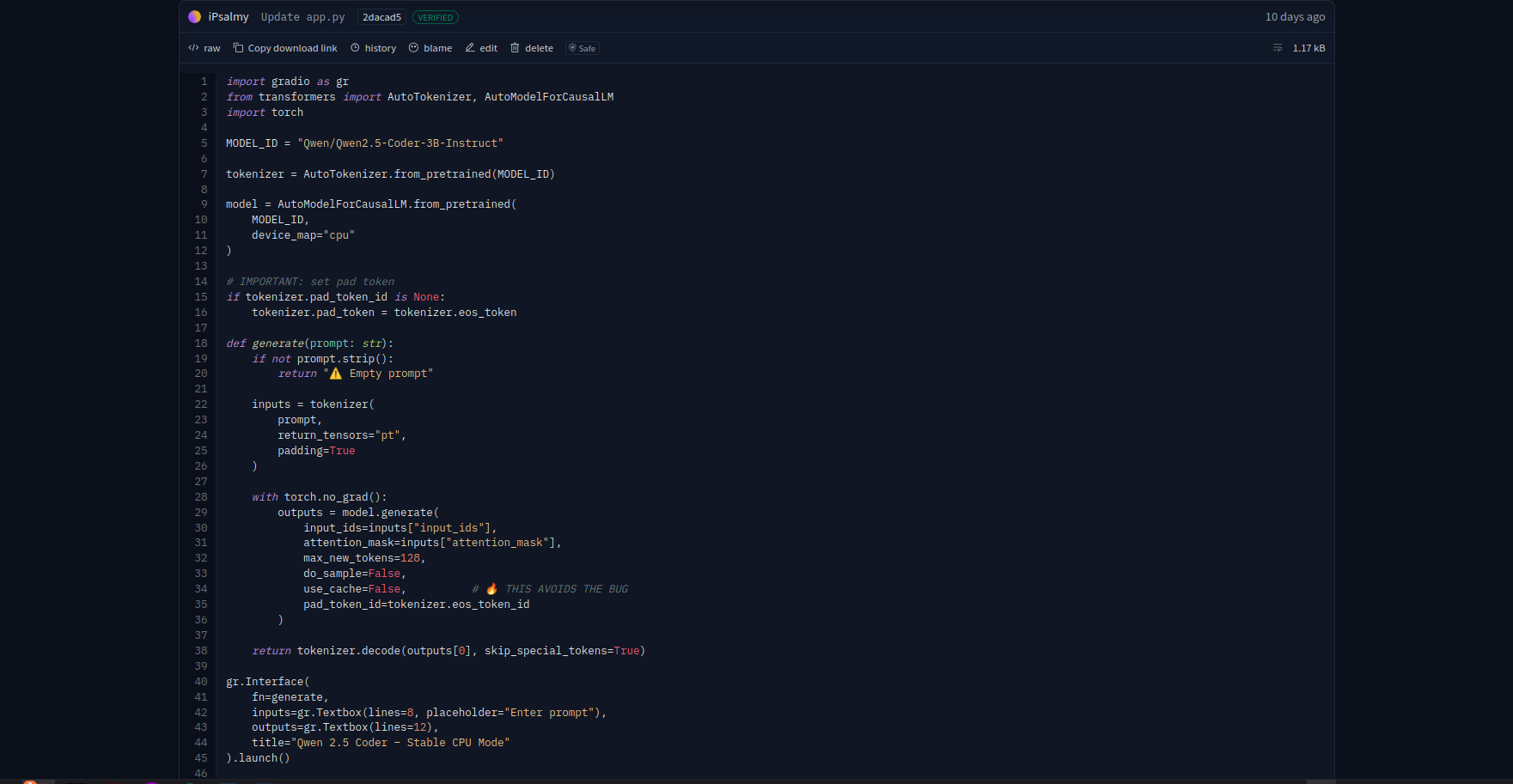
Remember what I said about running LLM on CPU - slow as f**
The free plan would only give you access to CPU, and I don’t think any hobbyist would be going for a paid plan, but I might. More like a researcher’s thing, not hobbyist. So, anything for research…..
Went, further to checking if there’s a more faster alternative. Then, I found a golden and ultimate solution……Google Colab.
Now, let’s cut to the chase. Stay with me and don’t zone out.
Setting up vLLM on Google Colab.
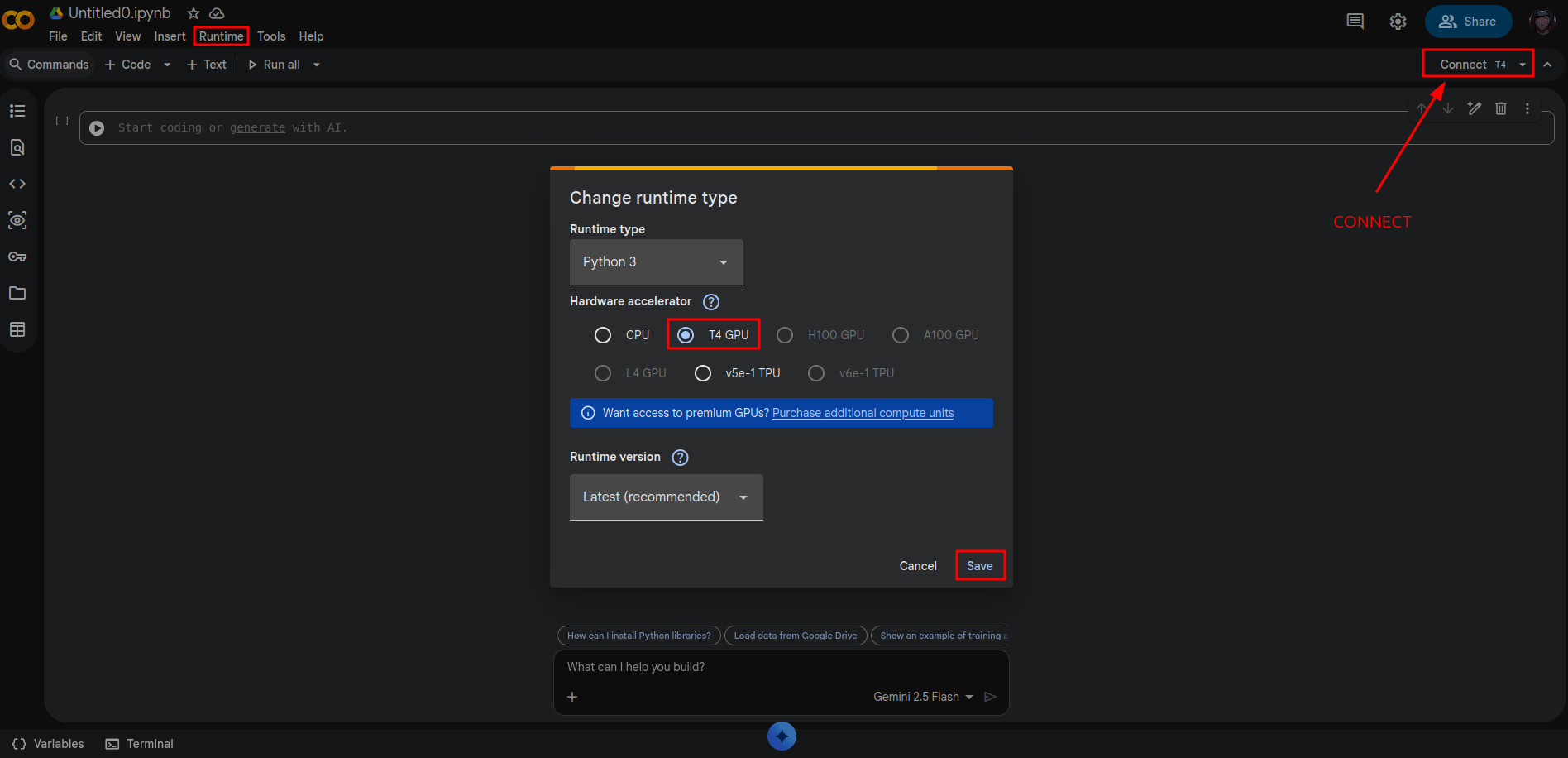
Runtime Config - T4 GPU
When you sign up with your gmail account on Colab, you get free storage space of about 100GB+, access to both CPU and a limited access to T4 GPU
We are making use of the T4 GPU for this model.
- Click on New Notebook after signing in OR Go to the file menu at the top and select New Notebook in drive.
- On the top menu, click on Runtime then change runtime type. Choose T4 GPU and connect.
Installation
Running commands on notebook starts with an exclamation mark. Also, each space to run the command is called a Cell and it has to be created per command, by clicking the + Code on the menu.
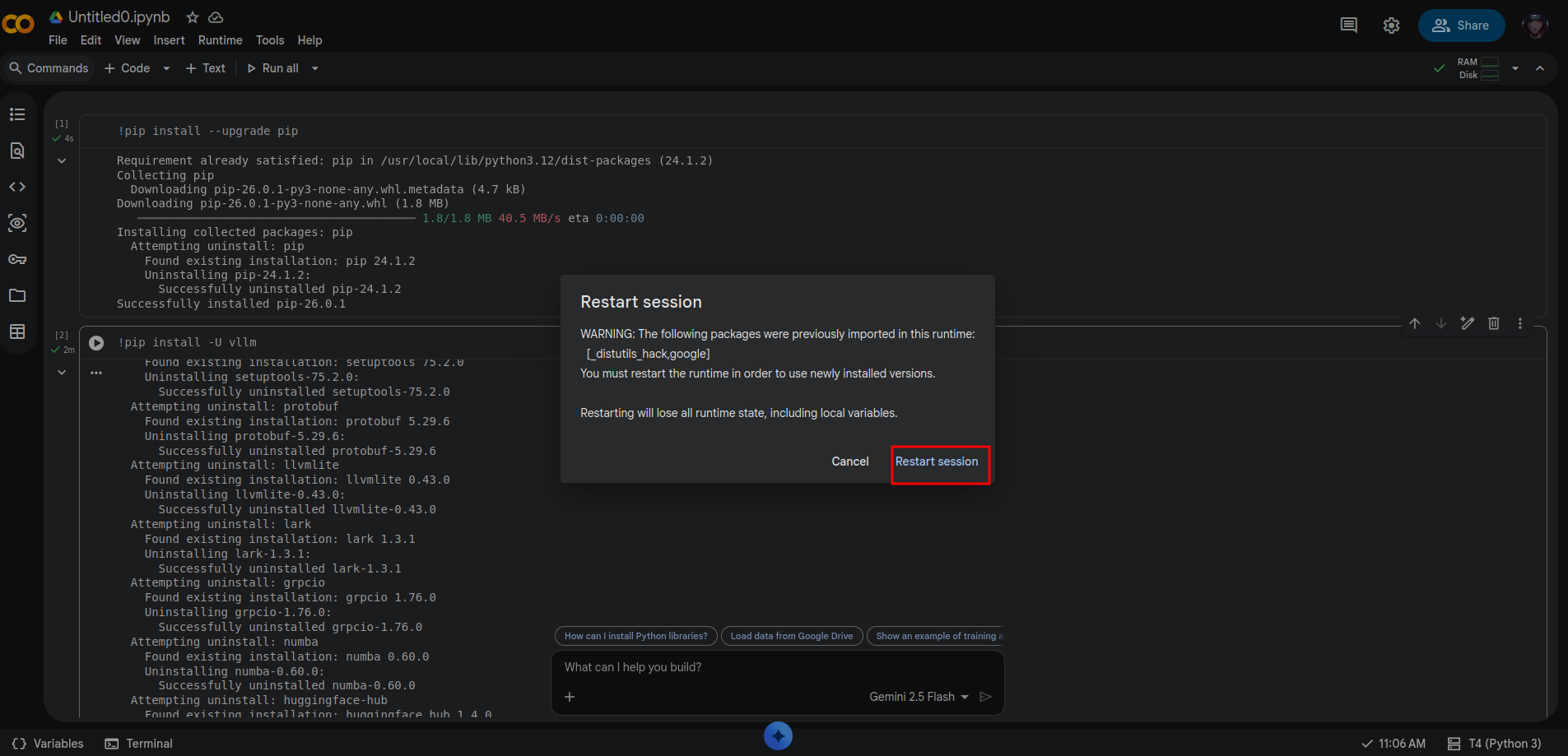
Run the following commands one after the other (follow instruct well because you’d need to restart the service). Click on the play icon to run the command:
1
2
!pip install --upgrade pip
!pip install -U vllm
You will get a prompt to restart the session, just click on restart.
We will be exposing the model through the web. You can use ngrok, but I went with cloudflare tunnel.
Run:
1
2
3
4
5
6
7
8
9
- !wget -q https://github.com/cloudflare/cloudflared/releases/latest/download/cloudflared-linux-amd64.deb

- !dpkg -i cloudflared-linux-amd64.deb

### Start the cloudflare tunnel:
- !nohup cloudflared tunnel --url http://localhost:7860 &

### See the cloudflare url
- !cat nohup.out
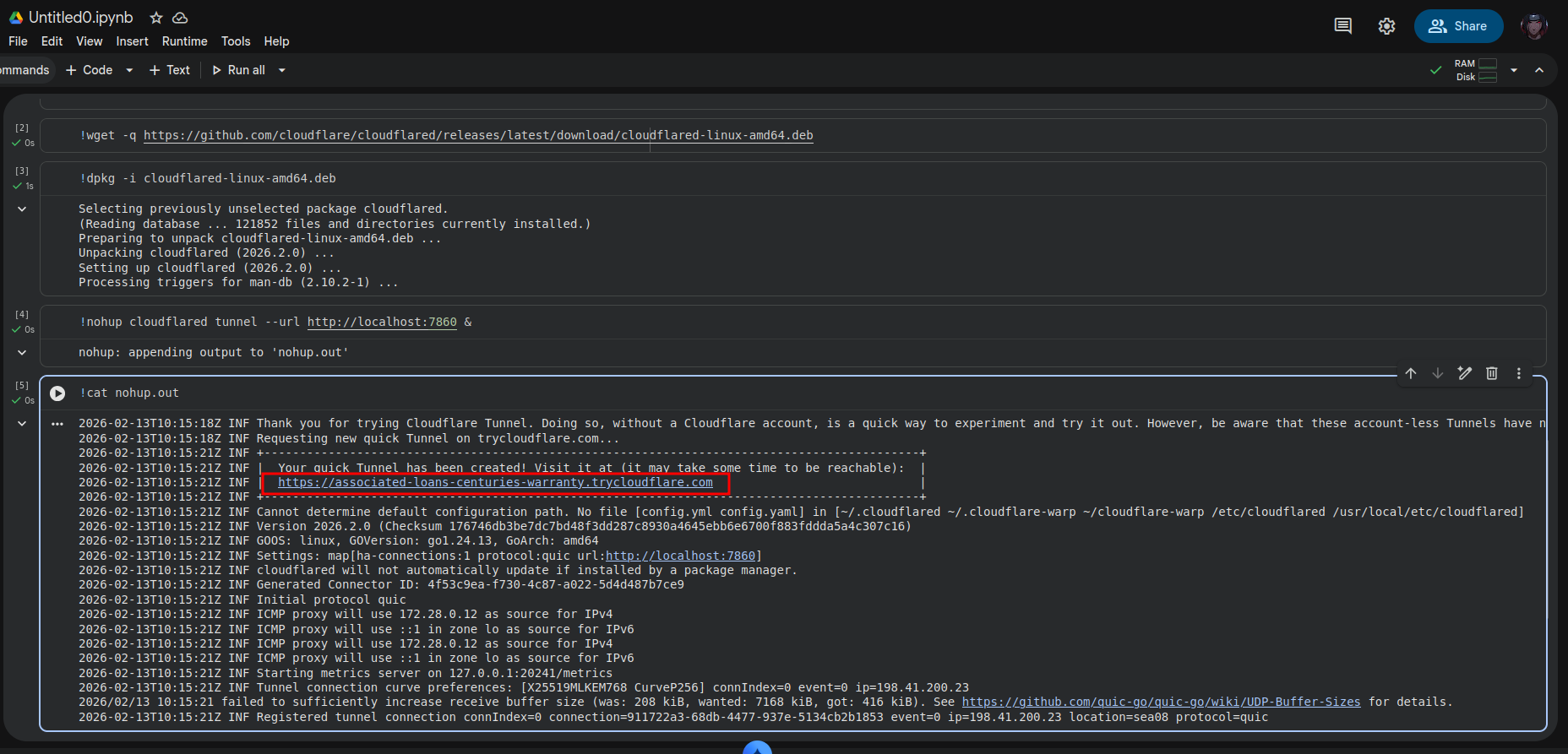
We are starting the tunnel first because, once the vLLM starts running, we won’t be able to run any other command till we stop the vLLM or append & to run in the background.
vLLM setup
For the model, we are going with Qwen 2.5 Coder. This can handle code completion and other coding tasks. However, you can choose a different model of choice.
1
2
3
4
5
6
7
8
9
!python -m vllm.entrypoints.openai.api_server \
    --model Qwen/Qwen2.5-Coder-7B-Instruct-AWQ \
    --served-model-name Qwen2.5-Coder-7B-Instruct-AWQ \
    --dtype auto \
    --max-model-len 16384 \
    --gpu-memory-utilization 0.9 \
    --enforce-eager \
    --host 0.0.0.0 \
    --port 7860
You know you are on the right track when you see this.
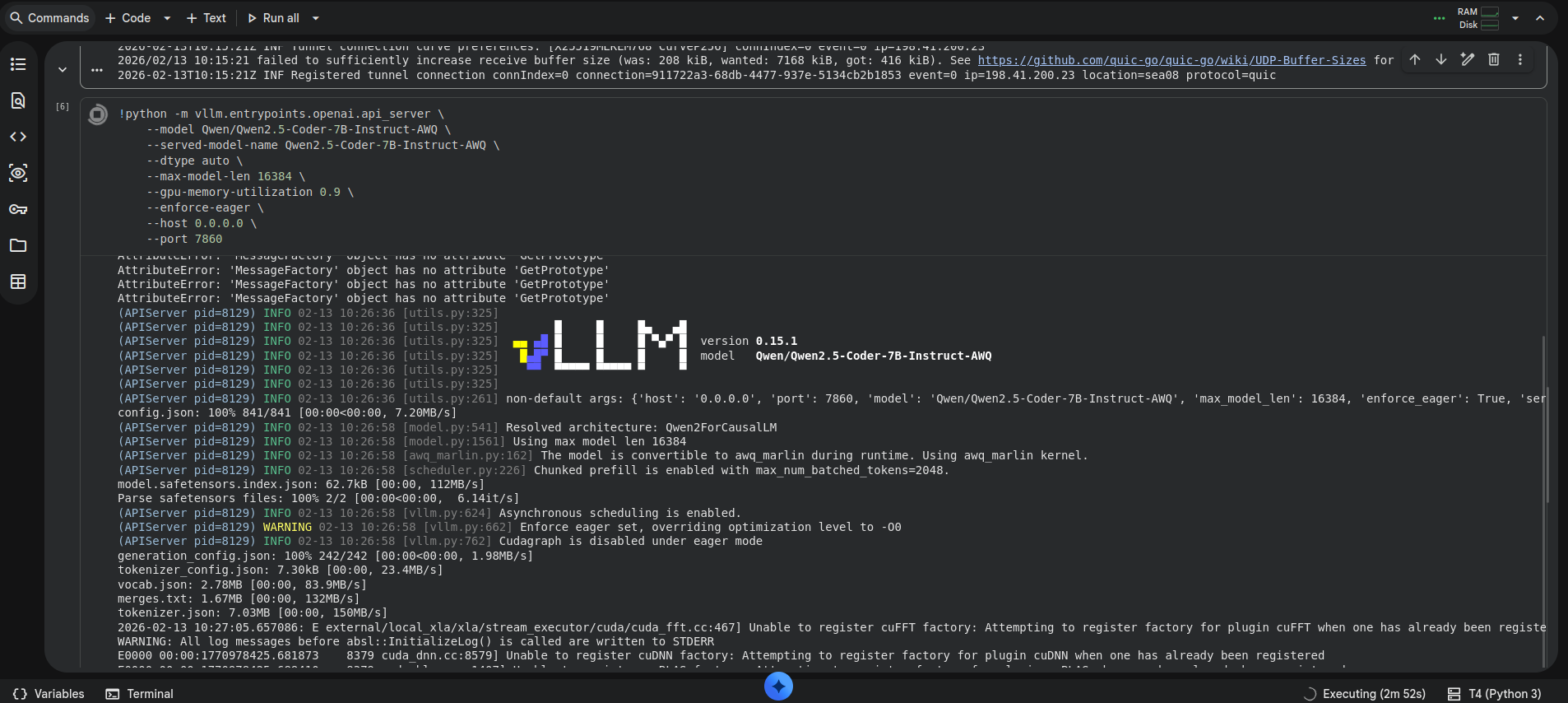
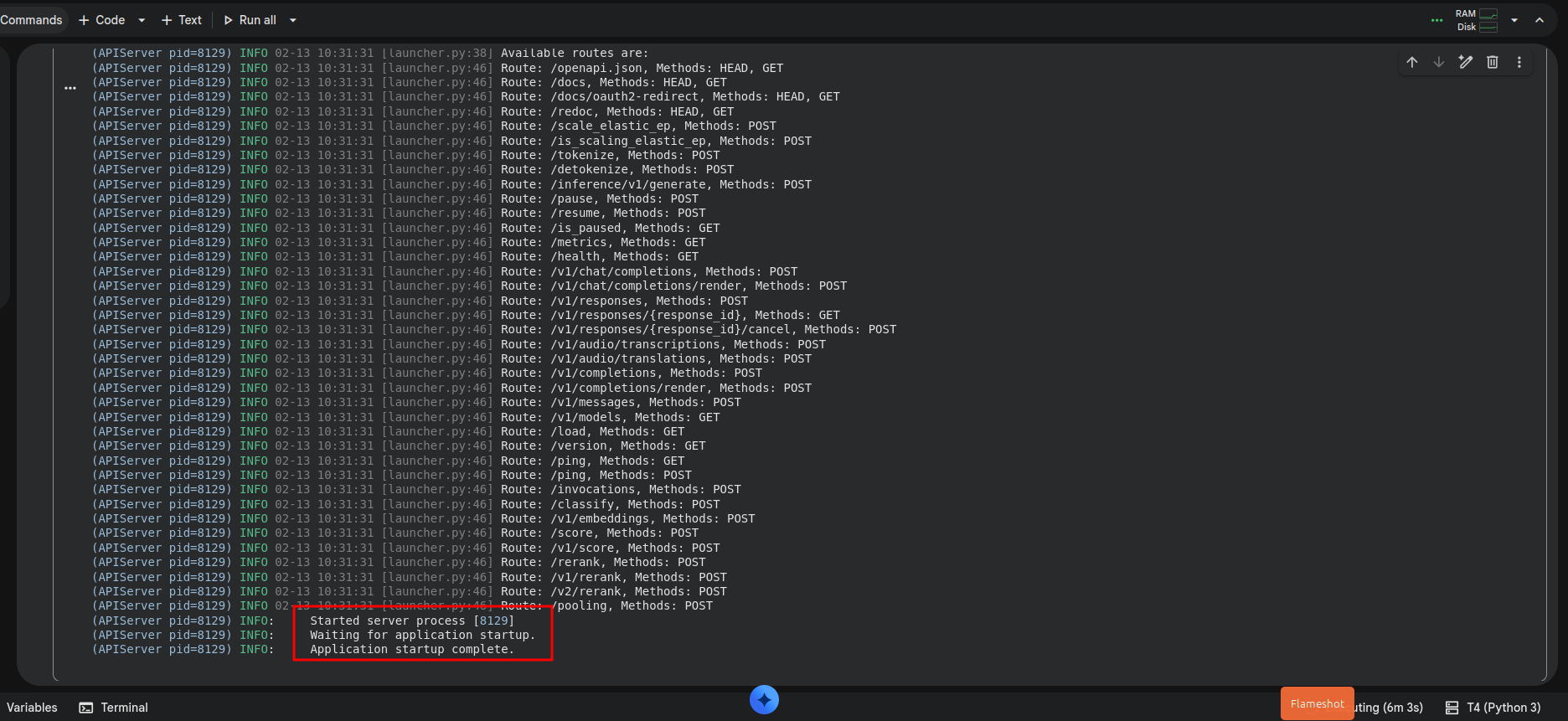
Once it’s up and running, you get this
Check if your model is running from your computer:
1
curl https://associated-loans-centuries-warranty.trycloudflare.com/v1/models
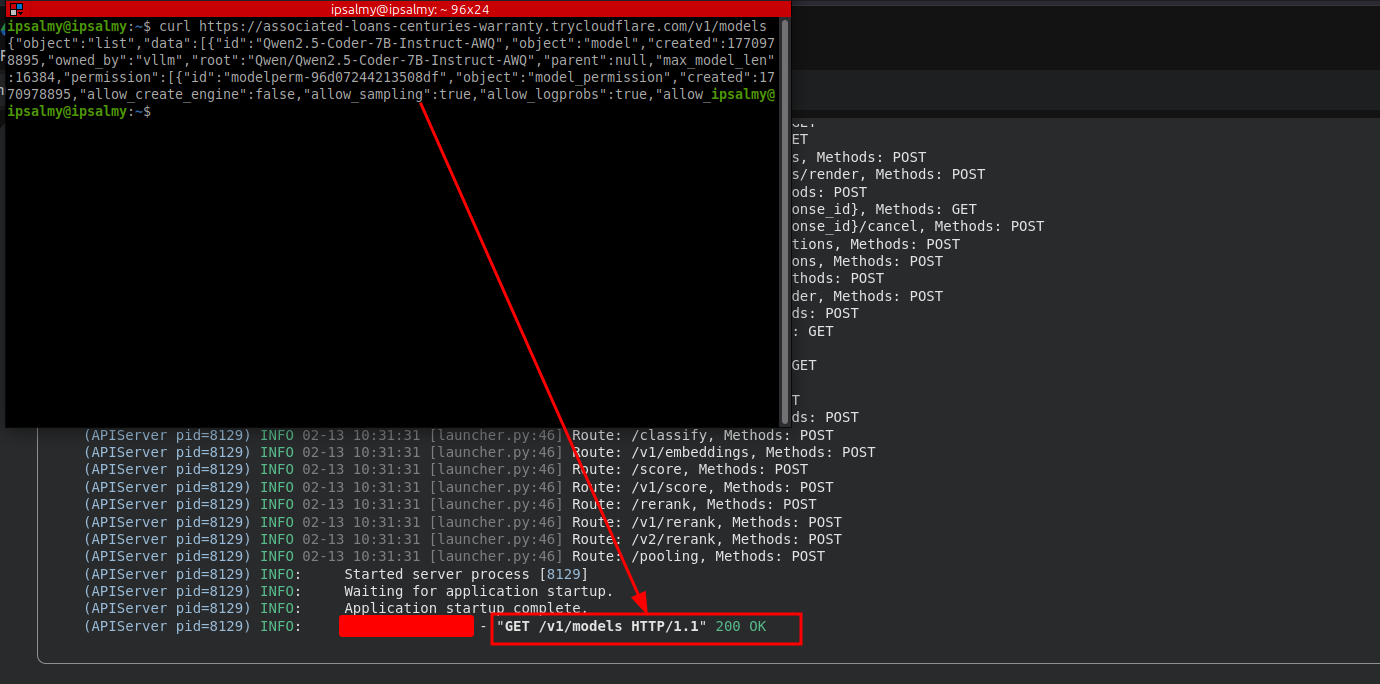 Now, we are up!
Extra
Opencode doesn’t directly support using vLLM yet, but you can communicate with the model through your terminal or create a custom python script to do this. To save you this stress, I’m currently building a simple tool called Oxium to help interact with the model properly.
1
- git clone https://github.com/DghostNinja/Oxium.git
All you need to do is input your model’s exposed url with model name into Oxium and you are good to go. Note that the tool is still under development so feedbacks and contributions are welcome.
You can also integrate the model into various AI projects.
Conclusion
Remember, you are on free plan. The notebook might timeout when you use for a long period, and you might need to wait for it to reset if you pass your free quota. So, switch the notebook off and disconnect runtime or just delete the session when you are not using.
Thanks for reading. Happy Hacking ✌🏽.